WinXPVista/Win7/Win8MacLinux
Dropbox keeps snapshots of every change in your Dropbox folder over the last 30 days (or more with the Extended Version History feature). So even if you accidentally pressed the delete key and erased something crucial, you can restore the file with a few clicks.
Note: Did you delete a shared folder? You can get it back by rejoining it.
 Recover deleted files on the Dropbox website
You can recover any file deleted in the last 30 days from the Dropbox website.
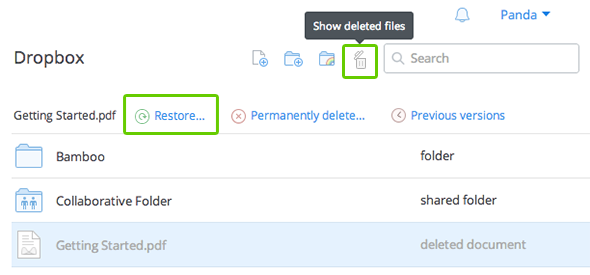 Recover multiple deleted files on the Dropbox website
If you've deleted many files in your account, you can use keyboard shortcuts to help you restore them.
You can get deleted items to appear consecutively by clicking the Kind column heading. (If you see an Extension or Size heading instead, keep clicking it until you see Kind.) All of your deleted files will appear together, and all of your deleted folders will appear together.
If a large number of files were deleted at once, it's possible to undo the entire deletion event.
If recovering files becomes a recurring issue, you can upgrade your account to include the Extended Version History feature, which allows you to revert to a previous file version or recover a deleted file at any time within a year of an edit or deletion made after your purchase. Learn more about Extended Version History.
If you've lost a file, please try to locate and restore the file using the steps described above. However, if you still can't find or open a lost file, you may be able to recover it from your Dropbox cache in an emergency.
Dropbox keeps a hidden collection, or cache, of your files as backup storage. Files in the cache folder are stored there often after they are moved or deleted after syncing. If you can't find your file using all other practical methods, you can try to recover the file from Dropbox cache as a last resort. The Dropbox cache will keep your files for up to three days after they have been moved or deleted.
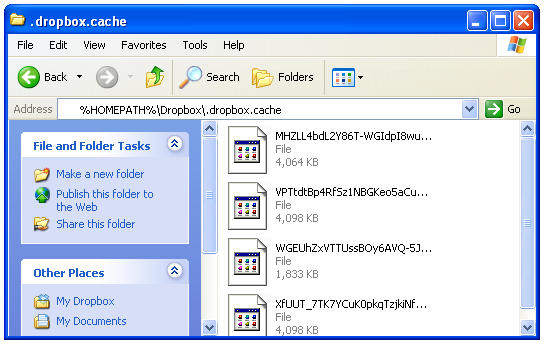
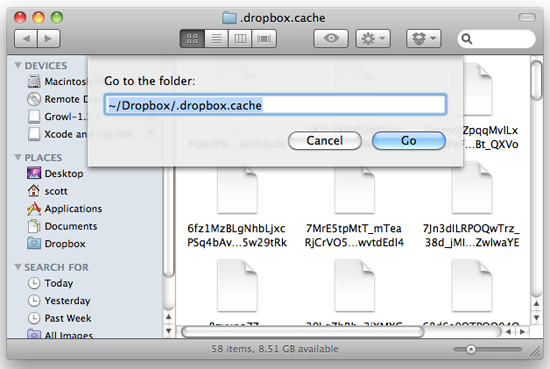
The Dropbox cache folder is hidden in your Dropbox application settings. To rescue a file from your Dropbox cache, follow these instructions:
Restore from cache on Windows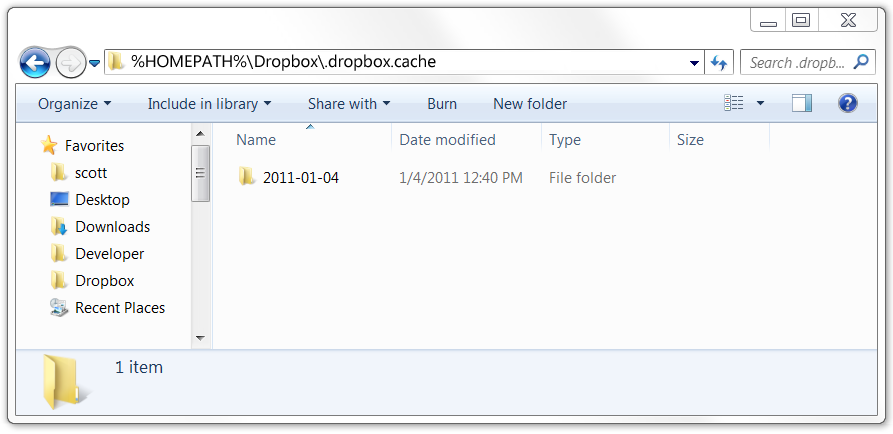
If the file is not in the Dropbox cache folder and doesn't show up as a deleted file on the website, then the file is most likely and unfortunately lost. Please note that Dropbox will never move or delete a file unless told to do so by the user. In most cases, lost files are simply misplaced or unwittingly removed by other users with access to a computer's Dropbox.