Groups are a new way of managing shared folders that make collaboration easier. Using groups, you can create and manage lists of members to share information directly with the group instead of adding each person individually.
Sign up for early access to enable this feature, and learn more about groups.
If you're the admin of a Dropbox for Business account, you can control whether team members can share stuff with people outside the team. To set sharing permissions, sign in to the Dropbox website, click on Admin Console in the left sidebar, and click on Sharing.


The rules you set for shared folders do not apply retroactively to invites. For example, if a team member invites someone outside the team to join a folder on Monday, then on Tuesday you decide non-team members can no longer be invited, the non-team member who got the invitation on Monday will still be able to join the folder.
Choose whether people outside your team can view shared links created by team members.
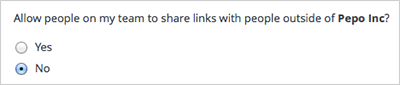
If you allow team members to share new links with non-team members, you can also determine if the default setting of links should be set to anyone with the link or team members only.

Team members will still be able to change the setting for each link by going to the Dropbox website.
 Dropbox for Business
This article refers to a feature unique to Dropbox for Business. Dropbox for Business is designed for projects, groups, and other organizations that want to share the same Dropbox storage quota with all of its members. If you're interested in learning more or want to sign up, visit the Dropbox for Business webpage.

