 WinXPVista/Win7/Win8MacLinux
Delete files as you normally would on computers, phones, and tablets, and they'll be deleted from the Dropbox website, too. You can also delete files from the Dropbox website, and they'll be removed from all the computers, phones, and tablets attached to your Dropbox account. Deleted files will not count against your account's overall storage quota.
If you want to restore any deleted files, keep in mind that Dropbox saves a history of all deleted and earlier versions of files for 30 days for all Dropbox accounts. If you purchase the Extended Version History add-on for your account, you can revert to a previous file version or recover a deleted file at any time within a year of an edit or deletion made after your purchase.
Removing a file from your Dropbox is as simple as dragging and dropping it somewhere out of your Dropbox folder. If you'd like to delete it, drag the file or folder to your Windows Recycle Bin.
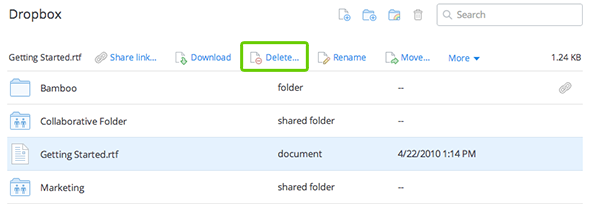
Deleted files can also be permanently deleted from your Dropbox. You might want to permanently delete a file if it contains sensitive information, like an old tax return, or if you simply don’t want to see the file any more, like your aunt's awful-tasting fruitcake recipe. Deleted files can be permanently removed from your Dropbox by taking the following steps:
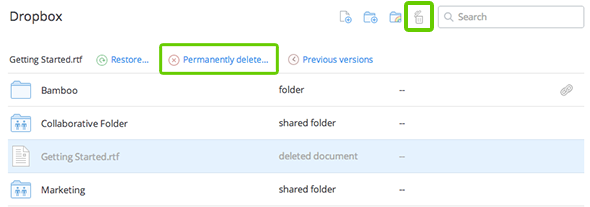
Please be careful! You will never be able to recover a permanently deleted file (which may not be a bad thing if we're talking about fruitcake).
As we explain in our Privacy Policy, it may take some time for a file to be purged completely from our system after a permanent deletion. Also, if other Dropbox users have the same files as the ones you permanently delete, their files are not affected by your deletion.
The Dropbox desktop application keeps a cache in your Dropbox folder for files and folders you move and delete. The cache is cleared automatically every three days. If you need to delete sensitive files immediately or need to clear up the space, you can manually clear your cache by following the steps in this Help Center article.
