Groups are a new way of managing shared folders that make collaboration easier. Using groups, you can create and manage lists of members to share information directly with the group instead of adding each person individually.
Sign up for early access to enable this feature, and learn more about groups.
If you’re the admin for a Dropbox for Business account, you can view and manage all the groups within your team.
To view the groups in your team:
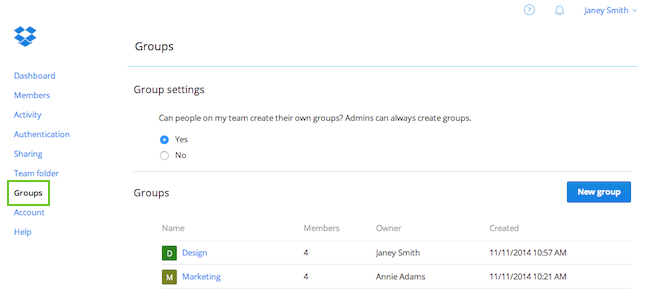 View your team's groups
All groups created by any member of your team will be listed on this page.
To edit a group, view your team’s groups, and select the name of the groups you’d like to edit, or create a new one by clicking the New group button. As the admin of a Dropbox for Business team, you automatically act as an owner for each group within your team, and you can manage those groups as an owner.
As the admin of your Dropbox for Business team, you can also view and manage the groups of any single team member. This can be helpful when onboarding new employees, since you can easily add them to all of the correct groups,, as well as when an employee changes roles and you need to adjust their groups.
To view a team member's groups:
Under Group membership, you'll see a list of all the groups that team member is a part of.
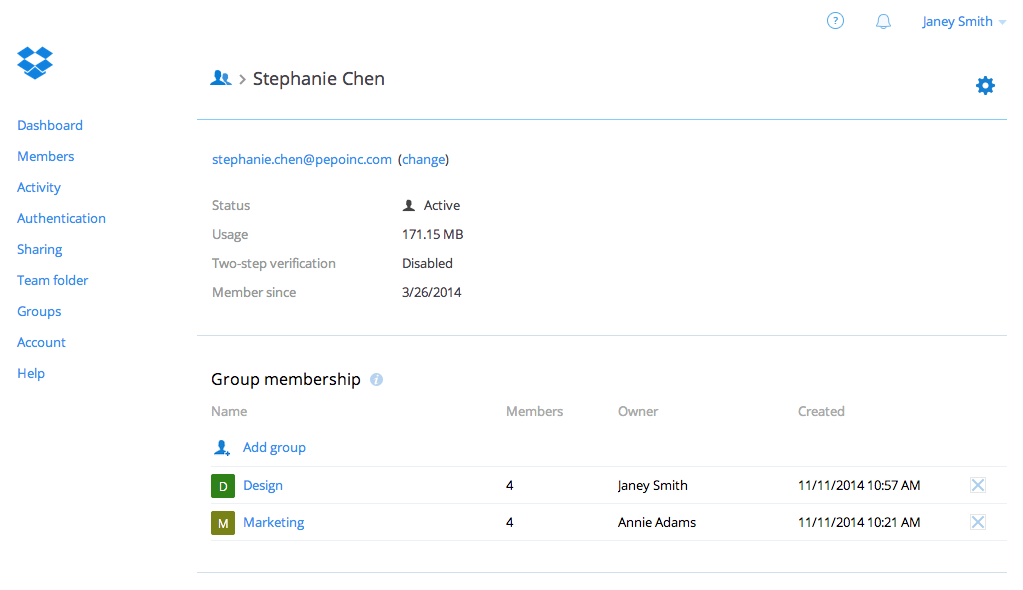 View a single team member's groups

