How do I transfer ownership of or add an owner to a group?

« Back to Help Center

New! Dropbox for Business groups

Groups are a new way of managing shared folders that make collaboration easier. Using groups, you can create and manage lists of members to share information directly with the group instead of adding each person individually.

Sign up for early access to enable this feature, and learn more about groups.


If you’d like to allow others to manage a group you own, you can add them as an owner without affecting your ownership status.
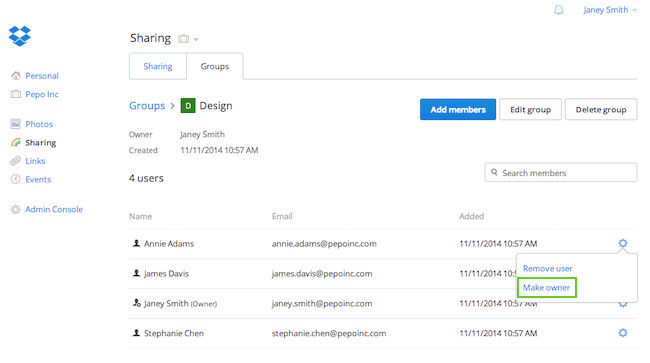
To add a group owner:

  1. Sign in to your Dropbox for Business account.
  2. In the left sidebar, click on Sharing.
  3. Click the Groups tab.
  4. Select the name of the group you’d like to add an owner to.
  5. Click the gear icon to the right of the user that you'd like to add as the owner, and select Make owner.
Add a group owner Click Make owner

If you’re transferring ownership, you can add an owner and then remove your ownership permissions or remove yourself from the group entirely.
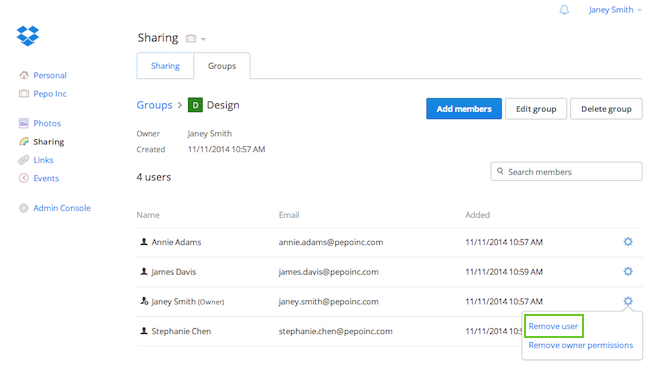
  1. From the group page, click the gear icon to the right of your name.
  2. Select Remove owner permissions to revoke your ownership status and remain in the group, or select Remove user to remove yourself from the group.
Click remove user to leave the group and transfer ownership Click Remove user