How do I set view-only permissions for members of a shared folder?
« Back to Help Center
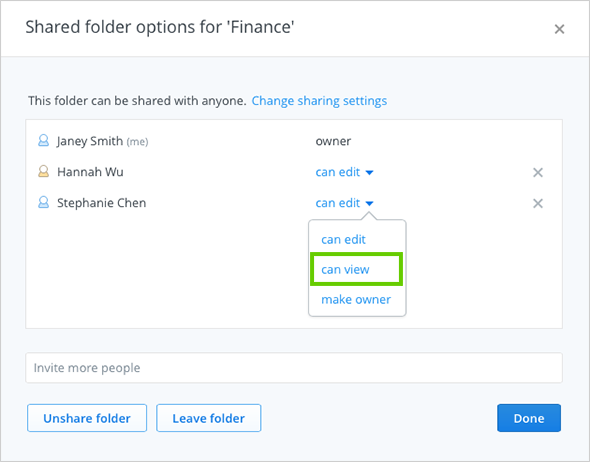
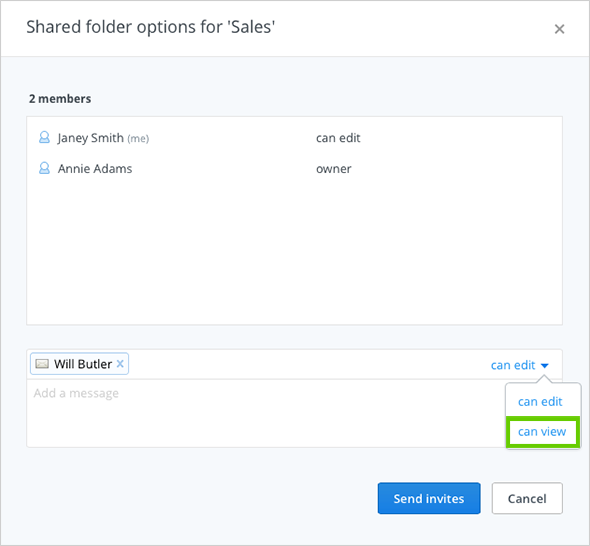
If you're a Dropbox Pro or Dropbox for Business user, you can prevent other members from adding, editing, or deleting files in your shared folder by setting view-only permissions. You can do this either when you invite someone to the folder, or later on by going to the shared folder options.
Set permissions when inviting people to a folder
- Sign in to the Dropbox website and select the Sharing tab from the left sidebar.
- Click the Options link to the right of the shared folder.
- Enter the email addresses of the new members you’d like to add.
- Click can view from the pull-down menu at the bottom.
Change permissions for existing members of a folder
- Sign in to the Dropbox website and select the Sharing tab from the left sidebar.
- Click the Options link to the right of the shared folder.
- Find the member you want to change permissions for and select can view from the pull-down menu.