The Dropbox desktop application allows you to easily access files from your computer, and seamlessly sync changes to all of your devices and collaborators. Installing the desktop application will add a small Dropbox icon in the bottom-right corner of your screen. If you already have this icon, Dropbox is installed! If not, just follow these steps:
- In a separate window, go to https://www.dropbox.com/downloading
- That webpage will start downloading a file. Open the file and run it to start the installer.
- Follow the instructions to either create an account or log in to your account.
The Dropbox desktop application allows you to easily access files from your computer, and seamlessly sync changes to all of your devices and collaborators. Installing the desktop application will add a small Dropbox icon in the top-right corner of your screen. If you already have this icon, Dropbox is installed! If not, just follow these steps:
- In a separate window, go to https://www.dropbox.com/downloading
- That webpage will start downloading a file. Open the file and double-click the Dropbox icon to start the installer.
- Follow the instructions to either create an account or log in to your account.
The Dropbox desktop application allows you to easily access files from your computer, and seamlessly sync changes to all of your devices and collaborators. Installing the desktop application will add a small Dropbox icon in the bottom-right corner of your screen. If you already have this icon, Dropbox is installed! If not, just follow these steps:
- In a separate window, go to https://www.dropbox.com/downloading
- That webpage will start downloading a file. Open the file and run it to start the installer.
- Follow the instructions to either create an account or log in to your account.
The Dropbox desktop application allows you to easily access files from your computer, and seamlessly sync changes to all of your devices and collaborators. Installing the desktop application will add a small Dropbox icon in the bottom-right corner of your screen. If you already have this icon, Dropbox is installed! If not, just follow these steps:
- In a separate window, go to https://www.dropbox.com/downloading
- That webpage will start downloading a file. Open the file and run it to start the installer.
- Follow the instructions to either create an account or log in to your account.
For more information, watch the installing Dropbox tutorial below:
This article refers to a feature unique to Dropbox for Business. Dropbox for Business is aimed at projects, groups, and other organizations that want to share the same Dropbox storage quota with all of its members. If you're interested in learning more or want to sign up, visit the Dropbox for Business webpage.
 WinXP
WinXP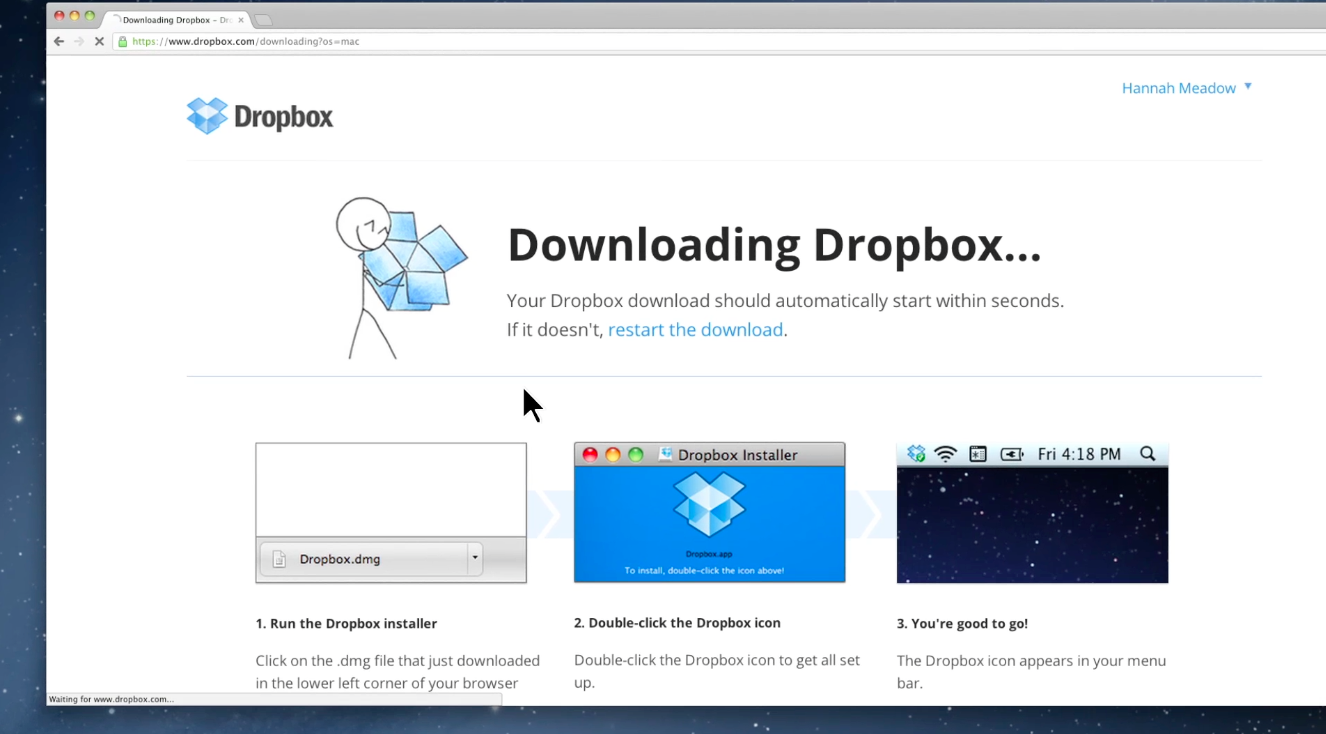
 Dropbox for Business