The new Dropbox for Business API helps IT administrators create new integrations and new partnerships with great third-party technologies like eDiscovery, Data Loss Prevention (DLP), Security Information & Event Management (SIEM), and more. Team admins can use the API to build a suite of security and compliance tools to manage analytics, content safety, and on-premises backups, and even build custom apps.
Click here to learn more, or click here to get started.
If you're the administrator of a Dropbox for Business account, you can let team members access Dropbox by signing in to a central identity provider.
Single sign-on (SSO) makes life easier and more secure for everyone. You can put the identity provider you already trust in charge of authentication, while team members can access Dropbox without another password to manage.
To get started, go to your identity provider's site and follow the provider's instructions to configure single sign-on.
Dropbox has partnered with many identity providers to offer a pre-configured app that contains the correct settings. See which identity providers we've partnered with.
If you’d like to configure your own solution or use a different identity provider, here are the parameters you'll need:
You'll need to find two pieces of information to give Dropbox:

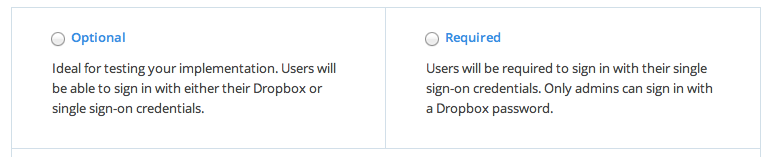


If you make single sign-on required, Dropbox will automatically notify team members by email. If you make single sign-on optional, you'll need to notify them yourself. You can download an email template from the single sign-on section of the Admin Console.
Once single sign-on is turned on, users can sign in to Dropbox by entering just their email address. This will redirect them to your identity provider's sign-in page, where they can enter their work credentials.
As part of SSO setup, we'll provide you with a custom Dropbox URL. This URL will enable users to go directly to their Dropbox account online if they've already signed in to your identity provider.
All computers and mobile devices that are currently linked to Dropbox accounts will continue to work as normal. However, if users need to relink a device or link a new one, they'll need the latest versions of the desktop application and mobile app in order for single sign-on to work. If they haven't signed in to your identity provider, they'll be automatically redirected to do so. They'll also be prompted to take a few other simple steps:
For details, see our instructions for end users.

